On this page · 11 sections
Core Web Vitals are Google's way of measuring how a page feels to real visitors: how quickly the main content appears, how fast the page responds when someone taps or types, and whether things jump around while it loads. They matter for search, but they matter more for people, because a slow, jumpy page loses visitors who were ready to enquire. This guide explains each metric in plain language, shows you how to read your own data without getting lost in scores, and sets out the fixes that make the biggest difference on typical business websites, including WordPress.
The three metrics, in plain language
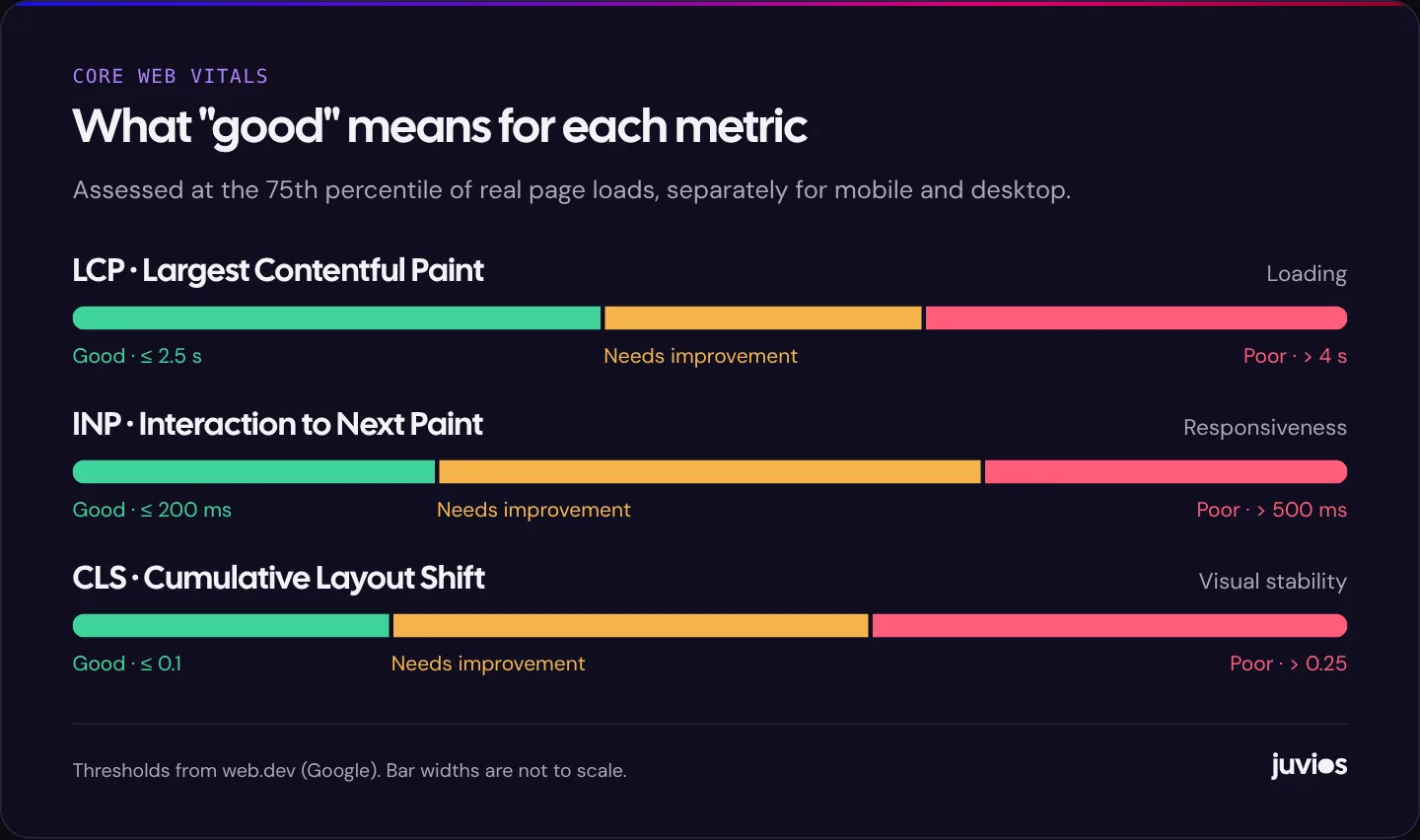
Google's Web Vitals documentation defines three Core Web Vitals and a “good” threshold for each.
- Largest Contentful Paint (LCP) measures loading. It records when the largest image or block of text in the visible part of the page has rendered. Google's guidance is that LCP should occur within 2.5 seconds of the page starting to load.
- Interaction to Next Paint (INP) measures responsiveness. It looks at how long the page takes to respond visually after someone clicks, taps or types, across the whole visit. A good INP is 200 milliseconds or less. INP replaced First Input Delay as a Core Web Vital in March 2024.
- Cumulative Layout Shift (CLS) measures visual stability: how much content moves unexpectedly while the page is in use. A good CLS is 0.1 or less.
Google also says how to assess them: at the 75th percentile of page loads, segmented across mobile and desktop. In other words, a page passes when at least three out of four real visits meet the threshold. That's why a page can feel fast on your office Wi-Fi and still fail on the data that counts, which comes from customers on mid-range phones and patchy connections.
 Tap to enlarge
How much they matter for SEO
Google's documentation on Core Web Vitals and search results says its ranking systems use Core Web Vitals, and recommends achieving good scores. The same page is careful to say that good scores don't guarantee top rankings, and that great, relevant content can still rank well with imperfect page experience.
So keep them in proportion. Fixing Core Web Vitals won't rescue a page that doesn't answer the search, and a slightly slow page with the best answer will often outrank a fast page with a weak one. The stronger business case is conversion: pages that load quickly and respond instantly are simply easier to use, especially on mobile, and that's where small improvements show up in enquiries.
There's also a practical point about who sees the problem. Business owners and their agencies usually look at their own site on fast laptops and new phones. Customers often don't. A page that feels instant in the office can be frustrating on an older phone in a car park, which is exactly the moment many local enquiries happen. Core Web Vitals are useful precisely because they're measured on those real visits, not on yours.
Read your data before you change anything
There are two kinds of performance data, and mixing them up causes a lot of wasted effort.
Field data: what real visitors experienced
Field data comes from real Chrome users through the Chrome User Experience Report (CrUX). It's what Google uses for Core Web Vitals, and it appears at the top of PageSpeed Insights and in Search Console's Core Web Vitals report. Smaller sites often don't have enough traffic for page-level field data, in which case PageSpeed Insights may show data for the whole site, or none at all.
Lab data: a simulated test
Lab data comes from Lighthouse, which loads the page once on a simulated device and connection and gives a performance score out of 100. It's useful for debugging because it's repeatable and shows what's slowing the page. But it's a simulation. A Lighthouse score isn't a Core Web Vitals result, and you don't need a score of 100 to pass.
Find the pages that matter
Search Console's Core Web Vitals report groups similar URLs together, which helps you spot a problem with a template, such as every blog post or every product page, rather than a single URL. Start with the templates that carry most of your traffic and enquiries: usually the home page, service or product pages, and the contact page.
Improving LCP
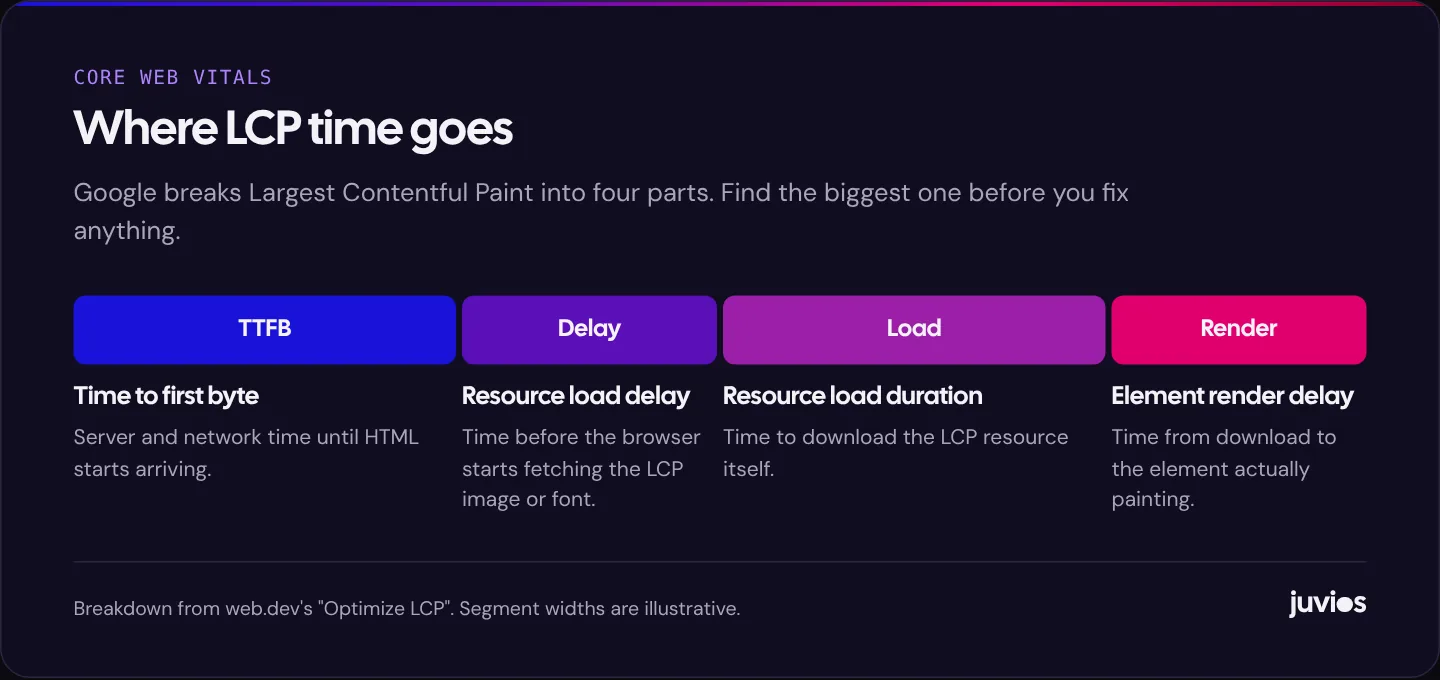
LCP is the metric most business sites fail, usually because of a large hero image or slow server response. Google's guide to optimising LCP breaks it into four parts, and the most useful first step is to find which part is largest. PageSpeed Insights shows this breakdown in its diagnostics.
 Tap to enlarge
If time to first byte is high
The server is slow to start sending the page. Improve hosting, turn on full-page caching, and use a CDN so the page is served from somewhere close to the visitor. On WordPress, page caching alone often makes a large difference, because it saves the server from building every page from the database on every visit.
If the LCP image starts loading late
The browser doesn't discover the main image until it has processed CSS or JavaScript. Use a normal image element in the HTML rather than a CSS background, don't lazy-load the hero image, and add a fetch priority hint so the browser requests it early. Avoid sliders and carousels for hero images; they often delay the main image behind scripts.
If the image itself takes long to download
Serve a modern format such as WebP or AVIF, size the image for the space it fills, and provide responsive versions so phones download smaller files. A 3,000-pixel photograph scaled down to a 400-pixel space on a phone is one of the most common causes of poor LCP we find.
If rendering is delayed
The image has arrived but the page isn't drawing it, usually because render-blocking CSS or JavaScript is still loading, or a web font is holding up text. Reduce and defer non-critical scripts, inline critical CSS where your setup supports it, and use a font-display setting so text appears before custom fonts finish loading.
Improving INP
INP problems come from the main thread being busy when a visitor interacts. Google's guide to INP explains the mechanics; in practice, on business websites the cause is usually too much JavaScript.
- Audit third-party scripts. Chat widgets, heatmap tools, social embeds, multiple analytics tags and ad pixels each add work. Remove what you don't use and load the rest after the page is interactive where possible.
- Trim plugins and page builder features. On WordPress, many plugins load JavaScript on every page even when they're only used on one.
- Break up long tasks. For custom sites, split heavy work into smaller chunks so the browser can respond to input between them, and avoid running expensive code on every scroll or keypress.
- Simplify large pages. A very large DOM, such as a page with thousands of elements from nested builder sections, makes every update slower.
Improving CLS
Layout shifts happen when something appears or resizes after the content around it has rendered. Google's guide to CLS lists the usual causes, and they're usually straightforward to fix.
- Give images and videos dimensions. Set width and height attributes, or a CSS aspect ratio, so the browser reserves the space before the file loads.
- Reserve space for embeds and ads. Maps, videos, review widgets and ad slots should sit in containers with a fixed or minimum height.
- Don't insert content above existing content. Cookie banners, promotional bars and "you may also like" blocks that push the page down after it has loaded are frequent culprits. Overlay them or reserve their space.
- Load fonts carefully. Swapping from a fallback font to a web font can shift text if the two are very different sizes. Preloading key fonts and choosing a similar fallback reduces the jump.
WordPress-specific fixes
WordPress powers a large share of business websites, and its performance problems are predictable. If your site runs on it, these are the changes we'd make first. For the bigger question of whether WordPress is the right platform, see WordPress vs a custom-built website.
| Fix | Mainly helps | Notes |
|---|---|---|
| Good hosting with server-level caching | LCP | The biggest single improvement on many sites |
| Page caching plugin, configured properly | LCP | Exclude carts, checkouts and account pages on stores |
| Image optimisation to WebP or AVIF with responsive sizes | LCP | Many hosts and plugins can do this automatically |
| Remove unused plugins and features | INP, LCP | Each plugin can add CSS and JavaScript to every page |
| Replace heavy multipurpose themes or page builders | INP, LCP | A bigger job; worth it when templates are the bottleneck |
| Delay or remove third-party scripts | INP | Chat, heatmaps and social embeds are common offenders |
| Set image dimensions and reserve space for embeds | CLS | Most modern themes do this; check old content |
| Self-host and preload key fonts | LCP, CLS | Fewer requests to other servers and less font swapping |
Be wary of stacking several optimisation plugins that all try to minify, combine and delay files. They often conflict, and an over-aggressive setting can break menus, forms or tracking. Make one change at a time and test the pages that matter, especially forms and checkouts.
Quick wins and bigger projects
Not every fix is worth the same effort. When we audit a business website, we sort the findings into two groups so the owner can see what to do this week and what to plan for.
Quick wins
These are usually configuration changes rather than rebuilds: turning on caching, compressing and resizing the hero image, removing the hero carousel, adding width and height to images, deleting unused plugins, and removing a third-party widget that nobody looks at. Together they often move a failing LCP or CLS into the passing range without touching the design.
Bigger projects
Some problems are structural. A theme or page builder that loads a large amount of code on every page, a hosting plan that can't keep up, or a design that depends on heavy scripts won't be fixed with settings. These are worth tackling when the quick wins aren't enough, or when you're already planning a redesign. If that's where you are, plan performance into the new site from the start rather than fixing it afterwards.
Test on a real phone
Whatever you change, check it on a real mid-range Android phone on a mobile connection, not just on a developer's laptop. It's the quickest way to feel what most visitors feel. Tap the menu, open the form, type in a field and scroll the page. If anything feels sluggish or jumps, the metrics will usually agree.
After you've made changes
Lab tools show the effect of a fix immediately. Field data takes longer, because CrUX reports a rolling 28-day window of real visits. Expect Search Console's report to take several weeks to reflect improvements, and use its validation feature on a fixed issue to track progress.
Keep an eye on new problems too. Performance tends to drift as plugins are added, campaigns add tracking tags and editors upload larger images. A quick monthly check of PageSpeed Insights for your key templates catches regressions before they affect many visitors.
It helps to agree a simple performance budget with whoever edits the site: hero images under a set file size, no new third-party scripts without a reason, and a quick test of the affected page after any significant change. Rules like these are easier to keep than fixes are to repeat.
Speed is one part of a healthy website. If your pages are fast but still not producing enquiries, read why your website isn't generating leads. If Google isn't indexing pages at all, start with why Google isn't indexing your pages. And if you'd like us to look at your results with you, book a free consultation.
Common questions
01Do I need a perfect PageSpeed score?
No. The Lighthouse score is a lab test. What counts for Core Web Vitals is field data at the 75th percentile. Aim to pass all three metrics for real visitors on mobile.
02Why does my site pass on desktop but fail on mobile?
Phones have slower processors and connections, so heavy images and JavaScript hurt more. Google assesses mobile and desktop separately, so optimise for mobile first.
03My site has no field data. What should I do?
Smaller sites often lack enough Chrome traffic for CrUX. Use Lighthouse and other lab tools to find and fix issues, and test on a real mid-range phone.
Sources
- Web Vitals web.dev (Google)
- Understanding Core Web Vitals and Google search results Google Search Central
- Optimize Largest Contentful Paint web.dev (Google)
- Interaction to Next Paint (INP) web.dev (Google)
- Cumulative Layout Shift (CLS) web.dev (Google)
- Chrome UX Report overview Chrome for Developers